
Opera Mini: Fast Web Browser
OperaCommunication
4.633.54K Reviews
- Version
- Varies With Device
- Installs
- 500.00M
- Age Rating
- Everyone
Screenshots

Our Review of Opera Mini: Fast Web Browser
 Analysis by Appyee
When I open Opera Mini: Fast Web Browser for the first time, I’d treat it as a practical second browser rather than immediately replacing the one I already use. Its appeal is simple: it’s built for quick everyday browsing, with tools for managing data, downloads, ads, and night-time reading. That makes the first session easy to approach: open a page you know, check that it loads comfortably, then try a feature that solves a real problem for you.
What to expect from a lighter browser
Opera Mini is a free communication app from Opera, and its focus is everyday web access rather than a complicated collection of extras. It has a 4.6 average from around 10 million ratings, with over 500 million installs, so it is clearly a familiar choice for many mobile users. It is rated for Everyone and has been available since November 24, 2014.
In practical terms, I’d consider it when my usual browser feels cumbersome, when mobile data matters, or when I want a separate place for casual browsing. The main trade-off is that a streamlined browser may not match the habits or integrations I already have in a long-established default browser. I would keep expectations grounded: the useful question is whether its built-in tools suit my routine, not whether it must replace every browser on my phone.
Getting started without overthinking setup
On the first launch, I’d avoid changing every available option before browsing. Start with a familiar page, then look at the home screen and the controls you can reach easily. That gives you a feel for the layout before you commit to making it your default. If you rely on a different browser for saved logins, bookmarks, or a synced desktop setup, it’s sensible to keep using that one for those tasks while you explore Opera Mini at your own pace.
A useful first test is to compare the same kind of page you visit often: a news article, a product page, or a search result. Notice whether the page is readable, whether images display as you expect, and whether the browser’s data-saving approach suits the content. Pages with lots of images or embedded media can behave differently from plain text, so one quick test is more informative than guessing from the app’s name.
Make data-saving useful in real life
The data-saving tools are most valuable when I use them deliberately. If I’m checking directions, reading a short article, or looking up a store while away from Wi-Fi, reducing unnecessary data use can make the session feel more manageable. For a video-heavy page, I’d be more cautious: compression may change how media is presented, and streaming still isn’t the same as reading a text page. I’d check the result before relying on it for something important.
One practical habit is to switch settings according to the task rather than leaving every option untouched forever. Use a data-conscious setup for browsing on a mobile connection, then reassess when you’re on Wi-Fi or viewing a site where image quality matters. This keeps the browser useful without assuming that one setting is ideal for every page. It also gives you a simple way to spot whether a page’s appearance is being affected by the way it is loaded.
Downloads, tabs, and small workflow wins
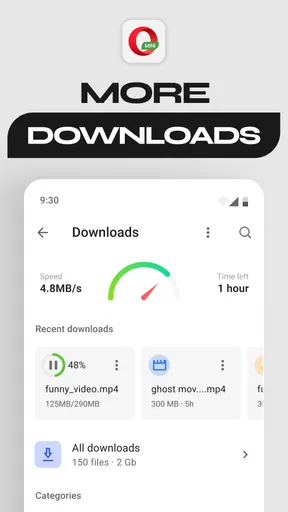
Downloads are a good reason to try the browser even if you don’t plan to move all your browsing over. If I need to save a document or another file while doing something else, background downloading means I can continue using the phone instead of waiting on the download screen. Afterward, I’d check the browser’s download area and open the file from there, rather than starting the same download again because I lost track of it.
For a realistic everyday example, imagine I’m waiting for a bus and need to read an article, save a document for later, and check one more page before my connection gets patchy. I can read first, start the download, and continue to another tab while it runs. That sequence is more useful than treating the browser as a speed test: the benefit is keeping a few small tasks moving without making each one feel like a separate interruption.
There is a modest trade-off here. Background downloads are convenient, but I still need to remember what I saved and where to find it; notifications help, yet they don’t replace a clear personal filing habit. If I’m downloading something important, I’d confirm it has finished before closing the app or depending on the file offline. That one check prevents a common bit of phone frustration.
Night reading and a cleaner page
Night Mode is handy when I’m reading in dim surroundings, especially for longer stretches when a bright page feels uncomfortable. I’d turn it on for an article or a few searches, then decide whether I prefer it for other sites. Page designs vary, so a mode that feels pleasant on one site may make another harder to read. It’s worth treating it as a reading aid to adjust, not a setting that must stay on at all times.
The ad-blocking tool can also make pages feel less cluttered, and fewer ads may mean less visual noise while reading. Still, a cleaner page is not a guarantee that every site will behave perfectly: some sites depend on advertising elements or may display content differently when blocking is active. If a page appears incomplete, I’d consider whether the blocker is involved before assuming the site itself is broken.
Privacy expectations and choosing the right browser
Opera Mini includes private browsing and ad blocking, which are useful controls for ordinary browsing. I see them as ways to reduce interruptions and keep a session separate from routine browsing, not as a reason to enter sensitive information casually on any public connection. For banking, account recovery, or other high-stakes tasks, I’d pay attention to the site address and the connection just as I would in any browser.
Compared with a typical full-featured mobile browser, Opera Mini’s strongest case is its focus on lighter browsing and practical built-in controls. A browser that already syncs smoothly with your computer may still be the better everyday choice if bookmarks, passwords, and cross-device continuity are central to your routine. Opera Mini makes more sense when quick access, data awareness, and straightforward downloads matter more than keeping one tightly connected browsing setup across devices.
Who is likely to enjoy it—and who may prefer another option
I’d recommend giving it a try if you use your phone for quick searches, regular reading, and occasional file downloads, particularly when you want more control over data use or a less cluttered page. It can also be a useful backup browser: keep your usual browser for work or synced accounts, and use Opera Mini for casual browsing or situations where its lighter approach is appealing.
I’d be less likely to make it my only browser if my day depends on a particular browser’s desktop sync, familiar password workflow, or consistent handling of media-rich sites. Anyone who mainly streams video or expects every page to look exactly as it does in another browser should test those sites before switching. There’s no need to force a full migration if the features that matter most to you are already handled better elsewhere.
A first-use routine that leads to a real result
For a reassuring first session, I’d open a familiar article, adjust the data-saving or night-reading controls only if they help, and then save a file I genuinely need. Next, I’d open another page while the download continues and check the saved item once it finishes. That small routine tests reading, navigation, and downloads in a way that resembles normal use, rather than leaving you with a vague impression after tapping around the home screen.
If the page looks different than expected, try it once with the relevant saving or ad-blocking control changed and compare. If a download seems missing, check the download area and its completion status before repeating it. Those simple checks answer two common first-use questions: whether a feature is changing how a site appears, and whether a file is still in progress or ready to use.
There’s no complicated learning curve I’d insist on before getting value from the app. The best next step is to use it for one ordinary task you already do on your phone, then decide whether the data tools, reading options, and download flow make that task easier. If they do, keep exploring; if not, your existing browser remains a perfectly reasonable choice.
First Impressions
When I first opened up Opera Mini, the interface struck me as clean and intuitive. It’s like meeting a new friend who’s chill and easy to hang out with. The app is designed to be straightforward, which is perfect if you’re not into overly complicated settings. As a browser, it’s lightweight and doesn’t demand much from your phone, making it ideal for older devices or those with limited storage.
One of the first things I noticed was the speed. Pages load in a snap, and this isn’t just some marketing spiel. I could open multiple tabs and browse without any hiccups. It’s quite the relief if you’re used to browsers that take their sweet time.
Data Saver Mode
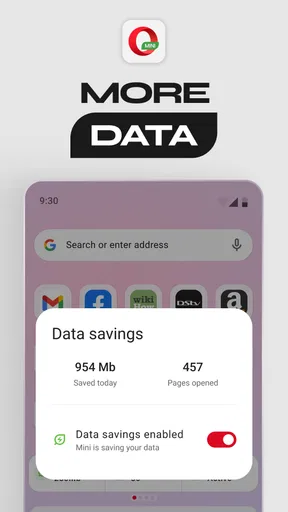
Now, let’s talk about one of the coolest features: the Data Saver mode. If you’re constantly worried about burning through your data plan, this feature is your new best friend. It compresses web pages so you save on data while still getting the info you need. I found that it really does make a difference, especially when streaming videos or browsing image-heavy sites.
- Easy to switch on and off
- Great for when you’re on a limited data plan
- Keeps the browsing experience smooth without sacrificing quality
Smart Downloading
Another nifty feature is the Smart Downloading. It manages your downloads like a pro and lets you save files in the background. No more waiting around for downloads to finish before you can do something else. I particularly love how it organizes files neatly and notifies you once they’re done. It’s like having a personal assistant for your downloads.
- Background downloading is seamless
- Organizes files efficiently
- Notifications are timely and helpful
Customization and Night Mode
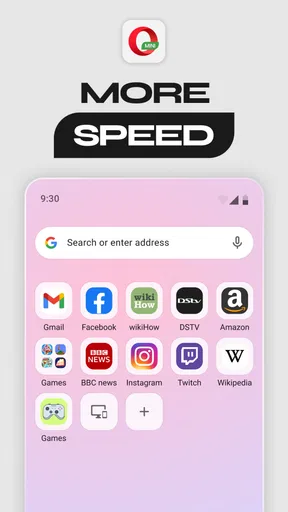
If you’re someone who likes to tweak things to make them just right, Opera Mini doesn’t disappoint. You can customize the home screen to suit your style. And for those late-night browsing sessions, there’s a Night Mode that’s easy on the eyes. It’s a smart touch that I found really useful.
"The ability to customize is like having a browser that truly feels like it’s yours."
Plus, the night mode feature is a lifesaver for night owls like me who often find themselves browsing in the wee hours.
Security and Privacy
In today’s digital age, security is a big deal, and Opera Mini doesn’t skimp on it. It comes with built-in ad blockers and a privacy mode that keeps your browsing private. This means fewer annoying pop-ups and a safer browsing experience. I felt more secure knowing that my data wasn’t being shared willy-nilly.
The built-in ad blocker is super effective and doesn’t just block annoying ads but also speeds up your browsing. So, it’s a win-win!
Final Thoughts
In a world full of browsers, Opera Mini: Fast Web Browser stands out with its speed, data-saving features, and user-friendly interface. It’s perfect for those who want efficiency without sacrificing performance. Whether you’re someone who’s always on the go or just looking to save on mobile data, Opera Mini is worth a download.
So, if you haven’t given it a shot yet, why not? It might just become your go-to browser, especially when you’re trying to keep things fast and efficient.
Privacy and Permissions
See what permissions an app requests and how it handles your data.
- Device & app history
- read your Web bookmarks and history
- Contacts
- read your contacts
- Location
- approximate location (network-based), precise location (GPS and network-based)
- Phone
- read phone status and identity
- Photos/Media/Files
- read the contents of your USB storage, modify or delete the contents of your USB storage
- Storage
- read the contents of your USB storage, modify or delete the contents of your USB storage
- Camera
- take pictures and videos
- Microphone
- record audio
- Wi-Fi connection information
- view Wi-Fi connections
- Device ID & call information
- read phone status and identity
- Other
- view network connections, create accounts and set passwords, pair with Bluetooth devices, access Bluetooth settings, change network connectivity, connect and disconnect from Wi-Fi, control flashlight, full network access, change your audio settings, control Near Field Communication, read sync settings, draw over other apps, control vibration, prevent device from sleeping, toggle sync on and off, install shortcuts, read Google service configuration
How Opera Mini: Fast Web Browser Compares
Full ComparisonUC Browser suits users who want add-ons and customization, Opera is the strongest all-round choice for ad blocking and a built-in VPN, and Opera Mini is geared toward lightweight browsing and saving-
| App | Developer | Rating | Price |
|---|---|---|---|
 UC Browser-Safe, Fast, Private | UCWeb Singapore Pte. Ltd. | 4.4 | Free |
 Opera: Private Web Browser | Opera | 4.8 | Free |
 Opera Mini: Fast Web BrowserThis App | Opera | 4.6 | Free |
Verdict
Strengths of Opera Mini: Fast Web Browser
- Lightweight and fast for quick browsing.
- Data-saving feature reduces mobile data use.
- Built-in ad blocker enhances page load times.
- Customizable interface with various themes.
- Offline reading mode for convenience.
Limitations of Opera Mini: Fast Web Browser
- Limited extension support compared to other browsers.
- Occasional website compatibility issues.
- No built-in VPN for added privacy.
- Syncing across devices can be inconsistent.
- Advanced settings are somewhat limited.
Other Releases by Opera
View All
Opera: Private Web Browser
Communication4.8

Opera News: breaking & local
News & Magazines4.5

Local News: Headlines & Alerts
News & Magazines4.5
Similar Picks in This Category
View All
Google Messages
Google LLC4.6

Gmail
Google LLC4.1

Google Meet
Google LLC4.4

Google Chrome
Google LLC4.1

WhatsApp Messenger
WhatsApp LLC4.6

Carrier Services
Google LLC4.2
Frequently Asked Questions
How does Opera Mini save data compared to other browsers?
Opera Mini uses advanced data compression technology to reduce the amount of data transferred, making it ideal for users with limited data plans. By compressing web pages up to 90%, it allows for faster loading times and decreased data usage, all without significantly compromising on quality.
Is Opera Mini secure for browsing sensitive information?
Yes, Opera Mini provides a secure browsing experience, including features like a built-in ad blocker, fraud protection, and encryption. While it’s designed for speed and data efficiency, security isn’t compromised, and it offers a safe environment for accessing sensitive information.
Can I use Opera Mini for offline browsing?
Opera Mini allows users to save web pages for offline reading. This feature is particularly useful for those who want to access content without an internet connection, such as during travel or in areas with poor connectivity. Simply save the desired pages and access them anytime.
Does Opera Mini support all websites and web apps?
Opera Mini supports a wide range of websites and web apps, but some complex sites might not display perfectly due to its data compression techniques. However, it excels at displaying most content efficiently, making it an excellent choice for users prioritizing speed and data savings.
How customizable is the Opera Mini interface?
Opera Mini offers a highly customizable interface, allowing users to tailor the browsing experience to their preferences. Features include customizable themes, a personalized news feed, and the ability to organize bookmarks and shortcuts, providing a user-friendly and personalized browsing experience.
